Cookie Consent
By clicking “Accept”, you agree to the storing of cookies on your device to enhance site navigation, analyze site usage, and assist in our marketing efforts. View our Privacy Policy for more information.


We know this is one you've been asking for, and we're excited to finally bring it to you!
You can now select any combination of substations, not just predefined clusters, and instantly view their combined data in one aggregated graph. No more exporting to Excel or GIS tools just to see the bigger picture.
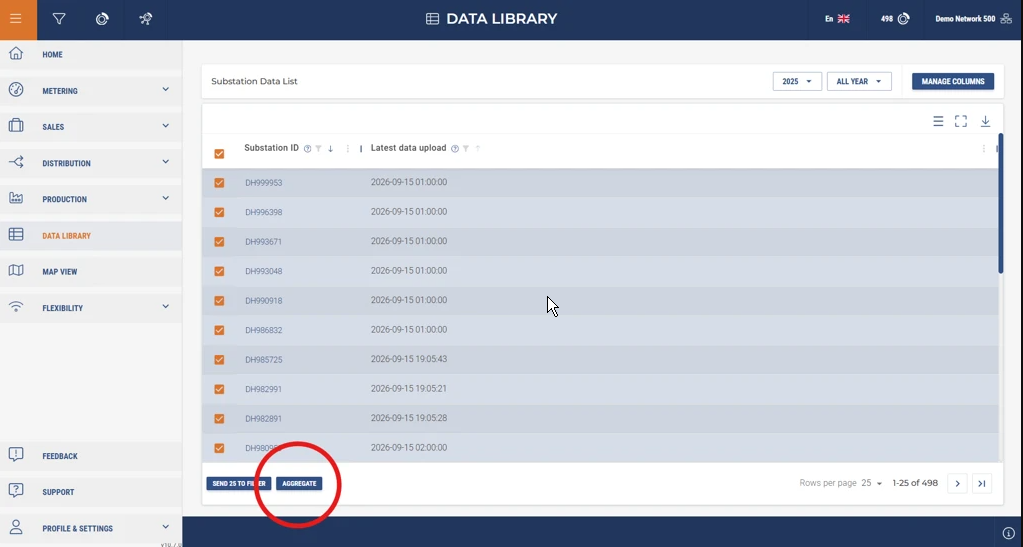
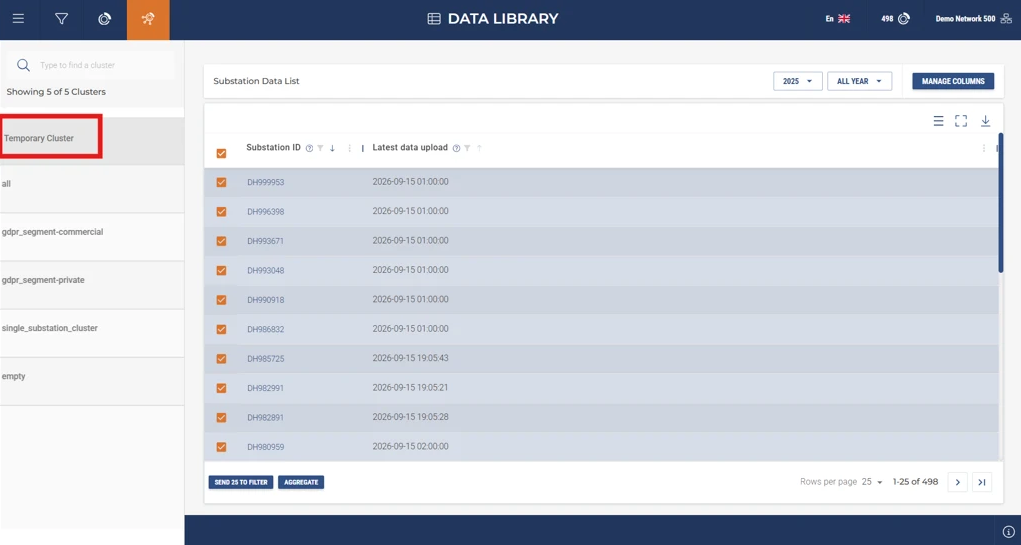
Add substations to your filter just as you already do today, whether that's from the map, via global filters, by uploading a CSV file with substation IDs, or by selecting them directly in the Data Library table. Then - in Data Library - click Aggregate button and choose your time range. Once ready, a new temporary cluster will be available via the Cluster Explore side menu.
You'll get aggregated views for the same meter time series data you already know from Cluster Explore's Cluster Consumption tab: energy, flow, power, supply temperature, and return temperature, plus the signature and duration diagram.
Whether you're investigating a disturbance, checking return temperatures across a neighborhood, following up after an operational change, or planning for capacity, you can now do it all directly in Utilifeed, on your terms, without being boxed into fixed groupings.
Your aggregation is available for the rest of your session, but it isn't saved permanently, so it'll be gone once you log out or your session ends. Running a new aggregation also replaces the current one, so if you want to compare different selections, you'll need to redo the aggregation each time you switch.
To keep things fast and reliable, there's a practical trade-off between how many substations you select and how far back in time you look. Selecting a large number of substations works best over a shorter time range, while a longer time range works best with a smaller selection. If you try to combine very large groups with very long periods, you'll be asked to narrow your selection.
For perfomance we've also built in smart caching behind the scenes, meaning the system keeps commonly used data readily available rather than recalculating everything from scratch every time. In rare cases you might however occasionally see a timeout error. If this happens, simply try again; it usually resolves quickly. If you keep running into the issue, reach out to Utilifeed support and we'll take a look.
This is our first version of this feature, and we're releasing it because we think it's genuinely useful today, not because we think it's perfect. As always we'd love your feedback!


